
Securing Your Web App: A Comprehensive Guide to Free SSL Certificates
Automating SSL certificates with tools like Let's Encrypt is the industry standard. But what happens when you are using a restrictive web host that doesn't support automated provisioning, or you just want to generate a certificate locally without giving a server direct access to your DNS?
You do it manually.
Provisioning an SSL certificate manually might sound intimidating, but it is actually a fantastic way to understand how Public Key Infrastructure (PKI) really works. In this guide, we are going to walk through generating a free SSL certificate locally using Certbot, validating your domain via DNS, and preparing the files for any type of web host—whether you are on Mac, Linux, or Windows.
Let's dive in!
Step 1: The Prerequisites
To get started, you need to have Certbot installed on your local machine.
For Mac users: The easiest way is using Homebrew. Simply open your terminal and run:
brew install certbot
For Windows users: Download and install the official Certbot Windows installer from the EFF's Certbot Instructions.
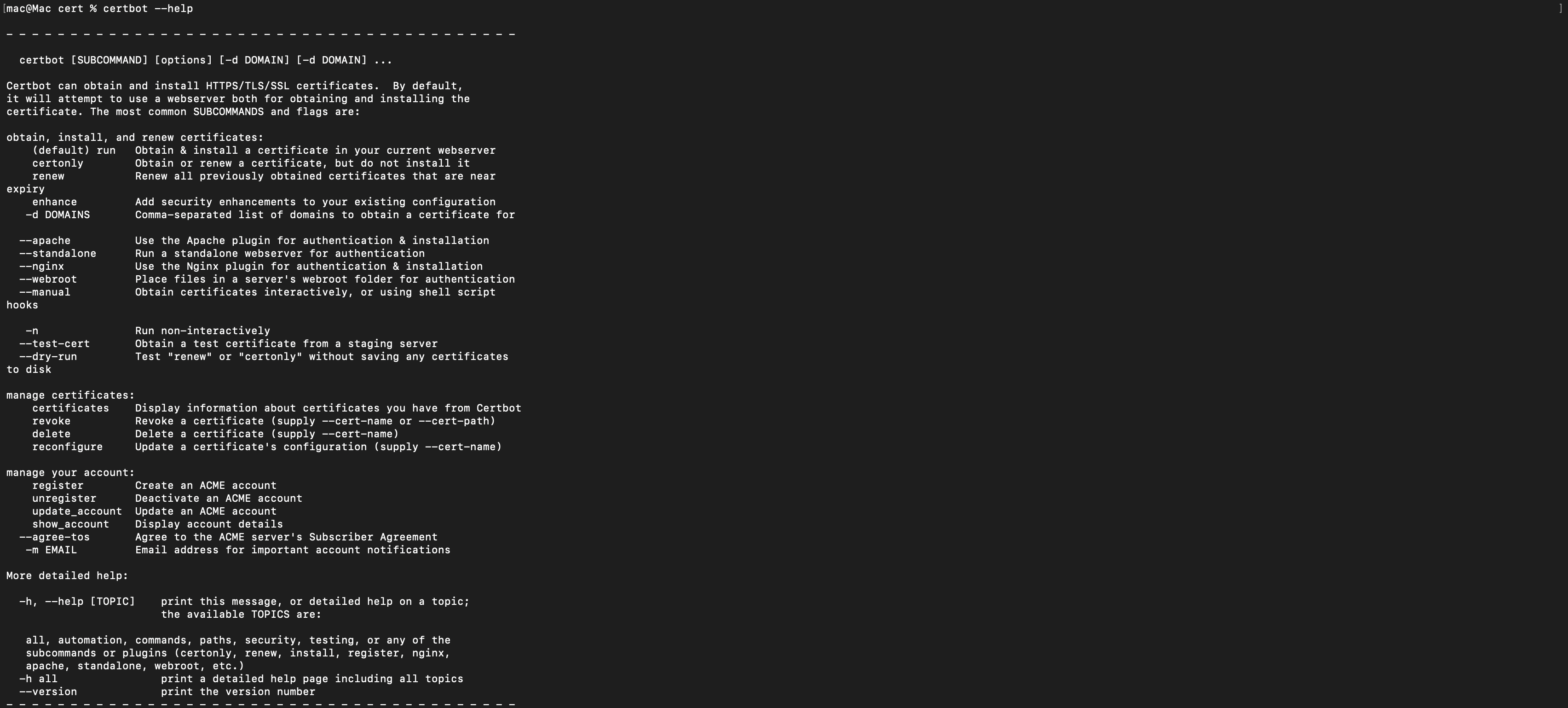
Tip: You can always run
certbot --helporcertbot -h allin your terminal to explore the available commands and flags.
Step 2: Requesting the Certificate (The DNS Challenge)
We are going to tell Certbot that we want a certificate, but we want to verify we own the domain by adding a temporary DNS record manually.
Run the following command in your terminal (replacing yourdomain.com with your actual domain).
For Mac/Linux:
sudo certbot certonly --manual --preferred-challenges dns -d yourdomain.com
For Windows: (Make sure to open Command Prompt or PowerShell as Administrator)
certbot certonly --manual --preferred-challenges dns -d yourdomain.com
Here is what each part of that command does:
sudo— Runs the command with admin privileges (required on Mac/Linux to write to/etc/letsencrypt/).certbot certonly— Tells Certbot to only obtain the certificate without trying to auto-install it on a web server.--manual— Enables manual mode so you can complete the domain verification yourself instead of relying on an automated plugin.--preferred-challenges dns— Specifies that you want to prove domain ownership by adding a DNS TXT record (as opposed to an HTTP file challenge).-d yourdomain.com— The domain name you are requesting the certificate for.
Here is what happens next:
-
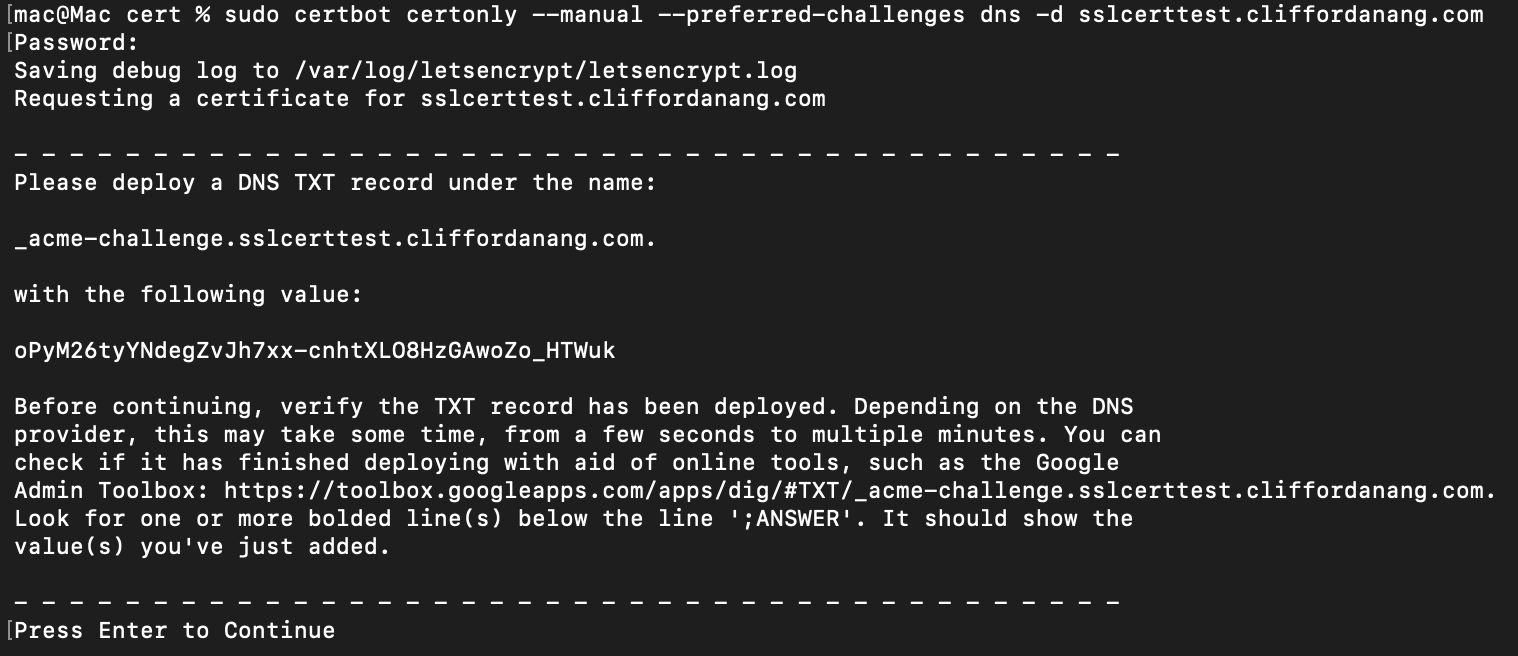
Certbot will pause and prompt you to create a specific DNS TXT record for your domain.
-
Keep your terminal open! Open your browser, log in to your domain registrar (e.g., Namecheap, Cloudflare, GoDaddy), and add the TXT record exactly as instructed.
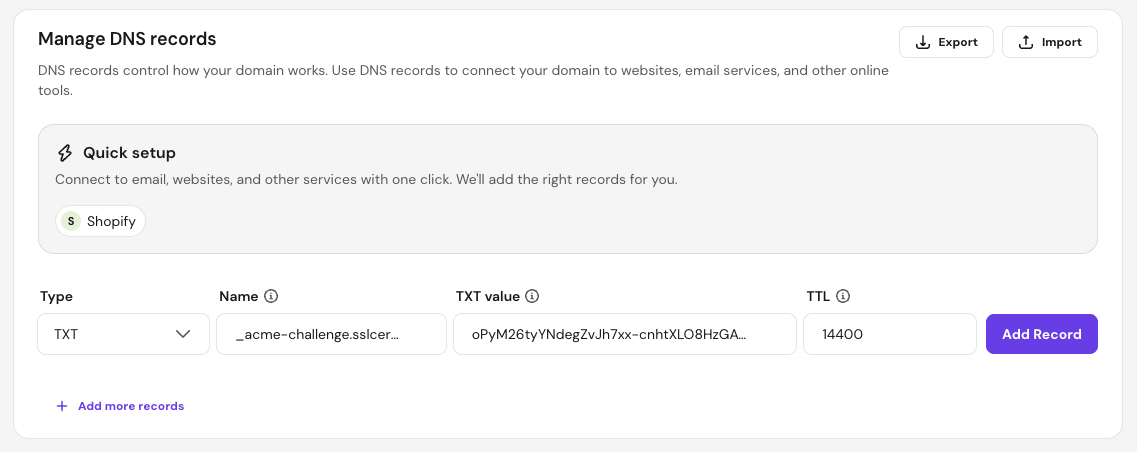
- Wait a few minutes for the DNS to propagate. (Reference
Admin Toolboxin step 1 screenshot. Copy the URL and open it in a new browser tab. You should get a result like below if its live.)
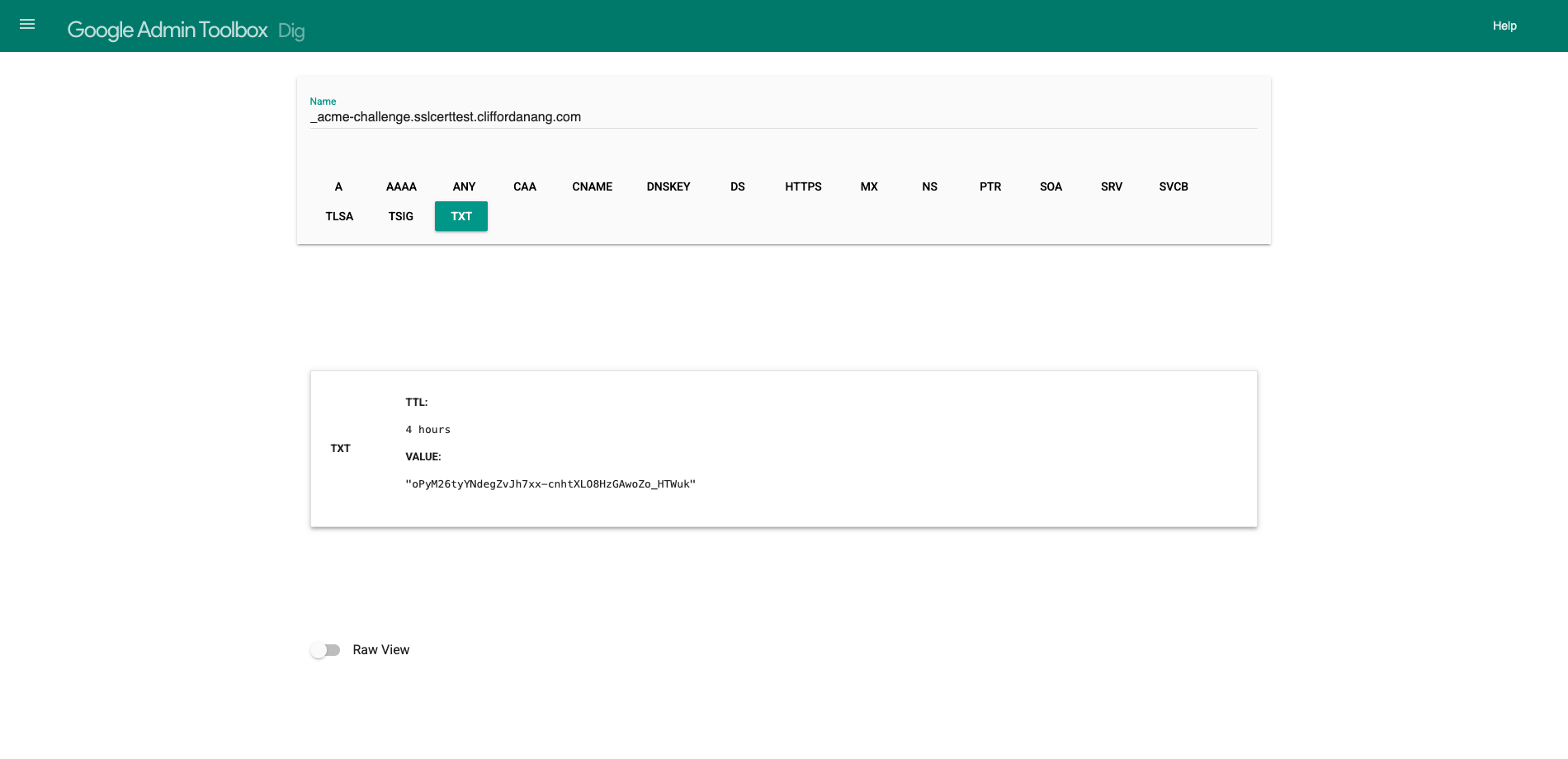
- Once you confirm the record has propagated, press Enter in your terminal.
Step 3: Extracting Your Files (The "Gotcha" Step)
Once verified, Certbot will generate your SSL files and save them to a local directory.

Where are the files?
- Mac/Linux:
/etc/letsencrypt/live/yourdomain.com/ - Windows:
C:\Certbot\live\yourdomain.com\
You need two main files for your server:
privkey.pem— Your private key (keep this a secret!).fullchain.pem— Your primary certificate combined with the intermediate chain.
Here is the catch: The files in the
livefolder are often just symlinks (shortcuts) pointing to a hidden archive folder. If you try to drag and drop them using a regular file explorer, they will break.
Here is how to safely move them to an accessible location like your Downloads folder:
For Mac/Linux
Use this exact command in your terminal:
sudo cp -rL /etc/letsencrypt/live/yourdomain.com/ ~/Downloads/cert/
Pro Tip: The
-rLflags are the secret sauce here.-rmeans recursive, and-Ltells the system to copy the actual files instead of the symlink shortcuts!
For Windows
Because Windows file explorer doesn't play nicely with Certbot's symlinks, the safest method is to copy the raw files directly from the archive folder using PowerShell (Run as Administrator):
New-Item -ItemType Directory -Path "$env:USERPROFILE\Downloads\cert"
Copy-Item -Path "C:\Certbot\archive\yourdomain.com\*" -Destination "$env:USERPROFILE\Downloads\cert\" -Recurse
The destination folder will look like this:

Step 4: Installing the SSL on Your Host
Different web hosts require different formats. Here are the two most common scenarios and how to handle them.
Scenario A: Your host has copy-paste text fields
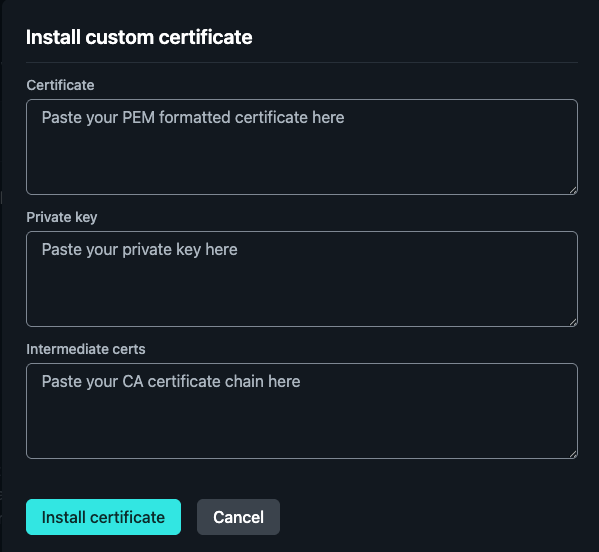
Many cPanel or custom dashboards just ask you to paste the text contents of the certificate. Navigate to your new Downloads/cert/ folder and do the following:
Tip: If a graphical text editor isn't available or the files won't open, Mac/Linux users can read the file contents directly in the terminal by running
sudo nano cert.pem. Windows users can force the file to open by runningnotepad cert.pem, or print the contents directly to the console usingtype cert.pemin Command Prompt (orGet-Content cert.pemin PowerShell). (Make sure your terminal is in the newDownloads/cert/directory first!)
- Certificate: Open
cert.pemin a text editor (like Notepad or TextEdit). Copy everything (including-----BEGIN CERTIFICATE-----and theENDline) and paste it into the host's Certificate field. - Private Key: Open
privkey.pemin a text editor. Copy and paste all the text into the Private Key field. - Intermediate Certs: Open
chain.pemin a text editor and paste it in. (Do not skip this! This is what ensures mobile browsers trust your site).
Scenario B: Your host requires a .crt or .pfx file upload
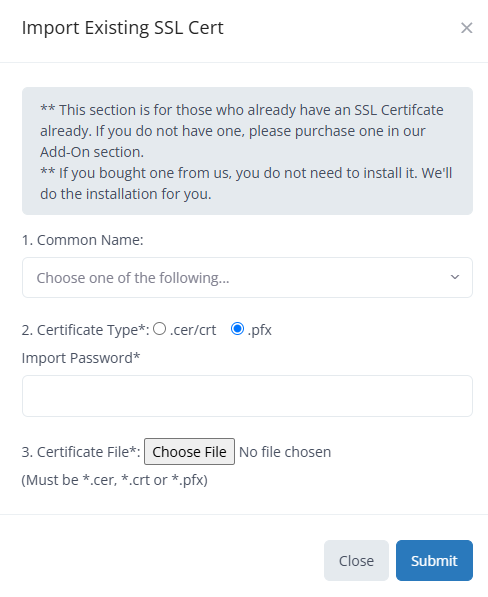
Don't let the alphabet soup of file extensions confuse you.
How to get a .crt file
A .pem file and a .crt file are the exact same thing (Base64-encoded text). The only difference is the file name. You don't need fancy tools to convert it—just rename the file!
Because you are uploading this to a web host, rename your fullchain.pem to fullchain.crt. This ensures you include the intermediate certificate so browsers trust your site.
Windows PowerShell or Command Prompt:
ren fullchain.pem fullchain.crt
Mac/Linux Terminal:
mv fullchain.pem fullchain.crt
How to get a .pfx file
If your host (like Windows IIS or Azure) requires a bundled .pfx file, you can generate it locally using OpenSSL. (Windows users: If you don't have OpenSSL installed, you can run this via Git Bash or WSL).
openssl pkcs12 -export -out mywebsite.pfx -inkey privkey.pem -in fullchain.pem
What this does: It bundles your private key (-inkey) and your primary/root certificates (-in) into one secure .pfx file (-out).

Crucial Detail: When you hit Enter on that OpenSSL command, it will prompt you to create an Export Password. Make sure you remember what you type! When you upload the
.pfxfile to your server, the host will ask you to enter that exact password to unlock and install the certificate.
Important — Renewal: Let's Encrypt certificates are only valid for 90 days and do not auto-renew when provisioned manually like this. Set a calendar reminder to repeat this process before your certificate expires, or your site will start showing security warnings to visitors.
Conclusion
And there you have it! You've bypassed the automated tools, proven your domain ownership via DNS, gracefully side-stepped the symlink trap, and prepared your files for any server environment.
You now have a deep, fundamental understanding of how SSL provisioning works. Bookmark this guide for the next time you need a secure connection without the hassle!